Agent Mode Overview
Agent Mode hands off RepoPrompt's context engineering to your coding agents. The same best practices that make IDE Mode in the older Classic Edition powerful — codemaps, file slicing, token-budgeted selection, structured prompts for reasoning models — are managed by agents on your behalf, inside a native macOS session host.
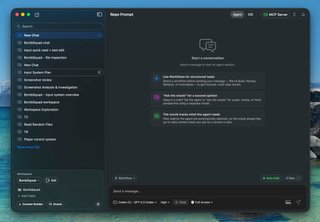
What Is Agent Mode?
Agent Mode runs CLI coding agents directly inside RepoPrompt, giving them full access to the same context tools you used in the Classic Edition's IDE Mode — file search, code structure, codemaps, Context Builder, and Oracle Chat. The agents apply RepoPrompt's best practices for context engineering automatically: curating token-efficient selections, using codemaps for architectural awareness, and structuring prompts for optimal reasoning. You watch their work stream in real time, review changes, and guide them as needed.
Supported Providers
Choose a coding-agent integration from the Providers & Models directory. Each provider's reference explains setup prerequisites, authentication, capabilities, and account boundaries. Configure the corresponding fields and controls in CLI Providers settings.
Use the models actually offered by that connection. The Models guide explains availability, identifiers, reasoning effort, and separate choices for execution, Oracle, and Context Builder.
Key Capabilities
- Per-Tab Sessions: Each compose tab gets its own agent session. Run multiple agents in parallel across different tasks with isolated context
- Context Builder Integration: Agents trigger Context Builder directly — a discovery agent curates the right files, then an analysis model generates plans, reviews, or deep answers grounded in your actual code
- Oracle Chat: Consult separately configured reasoning models for plans, reviews, and answers based on prepared task context.
- Token-Efficient Tools: Use Code Maps and line slices to supply relevant structure and implementation without including every file in full.
- Edit Review: Inspect edits and control approval behavior through the provider's permissions and Auto Edit setting.
- Image Support: Paste or drag-and-drop images into agent conversations
- Session Management: Resume sessions, track token usage, and manage multiple agent conversations
How It Works
The typical Agent Mode flow looks like this:
- Open a workspace and start a session for the task.
- Choose its execution location — work in the workspace checkout, create a new worktree, or choose an existing worktree.
- Select a workflow template from the What are we building? cards or the Workflow selector, then write your goal and constraints. The template wraps that message in a method for the task.
- Check the model, effort, tools, and permissions, then send.
- Watch and guide through conversation, tool cards, live questions, and approval requests. Inspect the resulting changes before accepting the result.
Read Sessions & Interface for the complete composer walkthrough and individual control guides. For coordinated top-level sessions and managed lanes, see Overseer Mode.
Getting Started
Open Settings → Agent Mode → CLI Providers and connect the provider you intend to use. Codex includes a managed runtime; other integrations may require an installed CLI or a managed runtime installation. Use Test Connection and complete any authentication the selected provider requests.
Open your project, choose the session's location and workflow, and send a specific task. Model availability and permission behavior depend on the connected provider.
Onboarding Wizard: When you first launch RepoPrompt CE, the onboarding wizard will guide you through setting up Agent Mode and testing your CLI providers.