Setup Wizard
The Setup Wizard recommends a configuration based on your available providers and the app's best-practice profiles. It helps align Oracle models, Context Builder, MCP preset exposure, and sub-agent role defaults. It configures model choices; installing the external MCP client connection remains a separate step in Setup Guide.
Open the Wizard
Click the toolbar's lightbulb to open Setup Wizard. The neighboring server icon opens the MCP Server popover. A yellow lightbulb indicates active recommendations.

The intro lists recommendations, provider status, and a Best Models by Use Case reference. Start Wizard reviews the recommendations step by step. Quick Apply All applies eligible, unsatisfied recommendations that have not been muted.
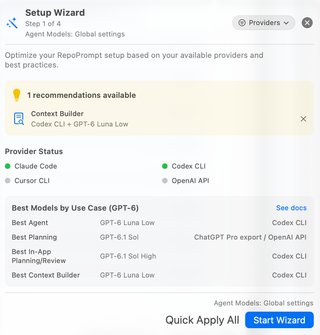
The screenshots capture particular model choices, connected providers, and a four-step walkthrough from an earlier build. Recommendations change with the app's catalog, provider availability, settings, and provider filter. See Models → Recommendations and screenshots for how to interpret these examples. The number and order of steps also vary: satisfied or muted recommendations can be omitted, while an available role-defaults review can still be shown.
Check the Settings Scope
Read the Agent Models label near the heading and footer before applying a recommendation. Global settings means the workspace inherits the global Agent Models profile, so changes affect that profile. Workspace — [name] means the wizard targets that workspace's overrides. The wizard follows the effective Agent Models scope; it is not always creating workspace-local changes.
MCP preset exposure has its own global scope. A recommendation to hide or show presets changes what MCP can discover without deleting the saved presets. Use Agent Models to inspect inheritance, workspace overrides, Oracle models, and role defaults.
Choose Providers for Recommendations
Open Providers to choose which provider families the recommendation engine may consider. The screenshot includes Codex CLI, Claude Code, Cursor CLI, Grok Build, and OpenAI API. Unchecked providers are excluded from the next recommendation calculation.
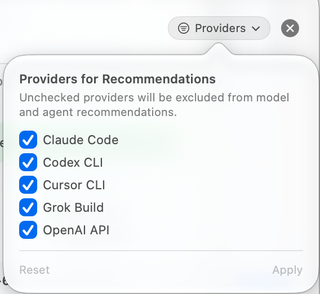
Choose Apply to recompute recommendations using the selected set, or Reset to restore all providers. This filter shapes recommendations; it does not install a provider, authenticate an account, disconnect an integration, or change which provider a manually selected session can use. Provider readiness and the selection filter are separate facts.
Review Context Builder
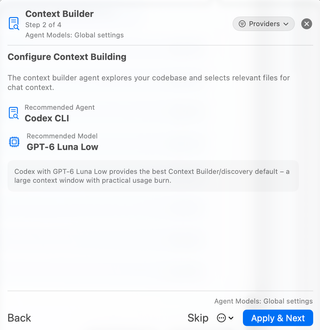
The Context Builder step shows a recommended agent, model, and explanation. Context Builder explores your codebase and selects files toward a context budget before the requested follow-up analysis. Its discovery model is distinct from the Oracle model used for a plan, review, or answer.
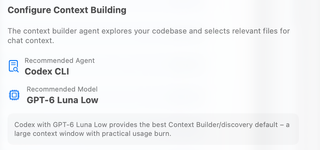
Apply & Next saves the recommendation to the displayed settings scope and advances. Skip advances without applying it. Back returns to an earlier step. The recommendation in the screenshot is not a model you must choose; configure a supported, authenticated provider that fits your account and task.
Change the discovery model later in Agent Models; question behavior and context budgets live in Context Builder settings.
Skip or Mute a Recommendation
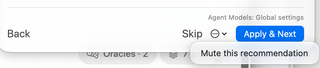
Skipping leaves the current settings as they are. To dismiss a recurring recommendation, open the step's overflow menu and choose Mute this recommendation. The intro also offers a dismissal control beside active recommendations. Muting suppresses that recommendation in the wizard; it does not apply the recommended value.
Muted differences can appear under Dismissed Recommendations, with Restore to make them eligible for review again. This is separate from Show presets in the MCP popover, which restores preset exposure.
Review Agent Role Defaults
The role-defaults step shows the recommended CLI agent and model for each task label. External callers use these roles when launching agents without pinning an exact compound model target. The current agent_run contract resolves an omitted model_id through the pair role; clients can discover the authoritative role mappings with agent_manage op="list_agents" and its task_labels response.
| Role | Intended work |
|---|---|
| Explore | Fast, read-only exploration and codebase mapping. |
| Engineer | Balanced engineering work. |
| Pair | Interactive pair programming with a higher-capability model (default when model_id is omitted in agent_run). |
| Design | Architecture, design critique, and creative problem solving (produces Markdown design/review documents under docs/). |
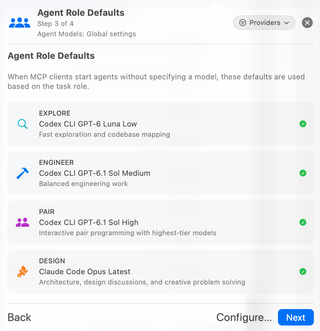
Use Configure… to inspect or adjust the role configuration, then Next to continue. The model names shown are examples, not permanent defaults for every installation. An explicit model target from the live agent catalog can pin a different provider/model/effort combination.
Summary and Next Steps
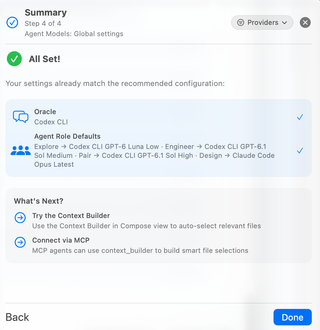
The Summary shows the resulting Oracle and role configuration, including settings that already matched. All Set! can therefore appear without applying a change during this walkthrough. Check the summary and choose Done to close it.
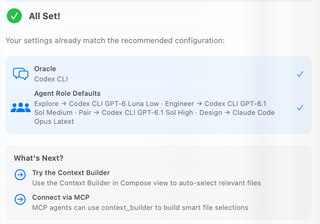
Try Context Builder from the Compose view to curate context, or connect an external client and invoke context_builder over MCP. Consult the Tools Reference for the current names and parameters rather than using tool names from older Classic guides.
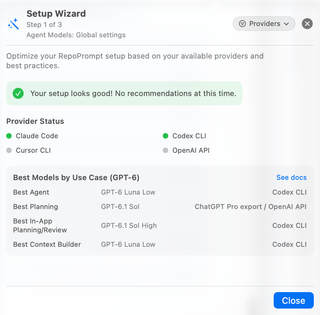
When No Recommendations Are Needed
If the effective configuration already matches the selected best-practice profile, the wizard can report Your setup looks good! and offer Close. Some builds present this as Setup Status with provider status, reference models, and any dismissed recommendations. It confirms the recommendation check; it does not prove that an external client is installed or connected.
Use the MCP Server popover to verify window access and connections, and Setup Guide to install the client integration.