Overseer Mode
Overseer Mode lets one Agent session coordinate other sessions. The overseer can follow their progress, read their conversations, give follow-up instructions, and help resolve questions within the authority you granted. You can keep working from one coordinating conversation while specialist sessions handle separate parts of a larger task.
Why use this if you are new to RepoPrompt?
An ordinary RepoPrompt session works with a coding agent on a task. When a project grows beyond one focused conversation, you may want an investigation in one session, implementation in another, and an independent review in a third. Without coordination, you have to carry status and instructions between them yourself.
An overseer provides a coordinating conversation for that work. You describe the goal and boundaries, let it assign or follow separate tasks, then review its conclusions. You can still open every session and inspect its messages and tool activity. Start with one or two clearly separated tasks; you do not need a large group of agents to benefit.
If you are learning the composer first, see Sessions & Interface. In particular, choose execution locations deliberately: separate conversations can still share the same checkout.
Open the oversight control
The composer toolbar includes an oversight control between Workflow and Interview. Open it to enable Overseer mode, add an existing session, inspect relationships in both directions, and manage wake behavior. The captured control uses a branching symbol; newer interfaces identify oversight roles with eye marks and counts.
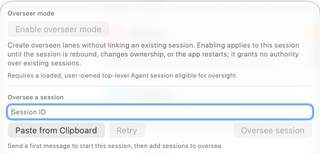
Use a loaded, user-owned top-level Agent session. If the composer has never sent a message, send an initial coordinating request first. For example: “Help coordinate an implementation and independent review. First establish the tasks and checkouts with me.” An unavailable control explains whether the session is still loading or is ineligible.
Choose how to begin
Create managed lanes. Choose Enable overseer mode, then ask the coordinating agent to create named lanes for defined tasks. A lane is a separate top-level Agent session created for this overseer and linked to it. Activation alone grants no access to your existing conversations. See Lanes.
Link existing sessions. Choose a session through the sidebar oversight menus or paste its session ID into Oversee a session. Review the confirmation naming the overseer and target. This is useful when several conversations already contain work you want coordinated. See Linking Sessions.
The explicit Enable overseer mode activation lasts for that session until its binding or ownership changes or the app restarts. Linking and saved relationship recovery have their own lifecycle; check the current popover rather than assuming an earlier activation grants access after a restart.
What the overseer can do
For a properly linked target, the confirmation describes access to status and conversation, instructions, steering, stopping the current run, applicable questions and one-time approvals, context compaction, and updates that can wake the overseer. Session-wide approvals, hook trust, merge reviews, and secret inputs stay with you.
An overseer can coordinate work across RepoPrompt windows, but it does not combine every session into a single conversation or automatically merge their file changes. Review results and integration decisions in the target checkout.
Keep coordination visible
The dashboard distinguishes Idle, Running, Waiting for input, and Unavailable. Open a session to inspect its actual result; an idle state alone does not prove its goal is complete. Pending updates and New indicators help you spot changes since the overseer last handled them.
Automatic wake controls can start additional model turns, consume usage, and produce further updates. Configure them around the task's needs, and use Unlink to end a relationship when coordination is finished. Best Practices explains work boundaries, wake settings, result review, and recovery.