Appearance
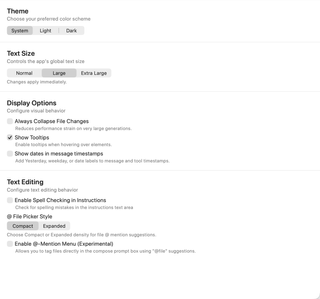
Adjust the app’s appearance, theme, and interface text size.
Open Settings → General → Appearance. Most choices apply app-wide and are saved for later launches. The screenshot shows example selections, not recommended defaults.
Theme

Choose System to follow macOS appearance, or Light or Dark to keep a specific color scheme. The selected theme is applied when you change it.
Text Size

Normal, Large, and Extra Large set the app's global text-size preset. You can also step through these presets with the font-size controls in Keyboard Shortcuts.
Changes normally apply immediately. During a response that freezes text scaling to keep the streaming layout stable, the new size is held until scaling is unfrozen.
Display Options
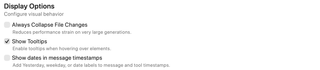
- Always Collapse File Changes keeps file-change displays collapsed, reducing rendering work for very large generations.
- Show Tooltips enables the app's hover explanations.
- Show dates in message timestamps adds labels such as Yesterday, a weekday, or a date to message and tool timestamps.
These settings change presentation; collapsing file changes does not undo edits.
Text Editing
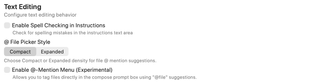
Enable Spell Checking in Instructions checks spelling in the instructions text area.
@ File Picker Style changes the density of file-mention suggestions: Compact or Expanded. Enable @-Mention Menu (Experimental) enables file suggestions when typing @ in the Compose prompt editor. Picker style and enabling the experimental menu are separate controls.