MCP Server
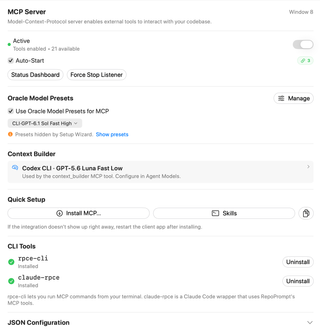
Manage RepoPrompt’s Model Context Protocol server, inspect connection status, configure external clients, and access CLI installation and JSON configuration tools.
Open Settings → MCP Server. The window number identifies the workspace window whose MCP access you are configuring. Connection counts and available tool counts are live values; the screenshots on this page are historical captures showing 21 available tools (out of 31 total domain tools, 21 are advertised to external clients — 3 global and 18 window-scoped — while 10 policy-gated and sub-agent internal tools are reserved for Agent Mode and oversight sessions).
Status and window access

The main switch enables or disables MCP tools for this window. A running listener and enabled window access are different states: the page can report Active, Waiting for listener…, Listener active with tools disabled for the window, or Inactive.
Auto-Start controls automatic MCP server startup when RepoPrompt launches. The connection badge summarizes connected clients. Status Dashboard opens diagnostics, and an error indicator, when present, opens error details.
Force Stop Listener shuts down the shared listener for every window and client. Use the window switch when you only intend to disable access to the current window. A Cancel button can appear while a tool is running to abort that call.
Oracle Model Presets

Use Oracle Model Presets for MCP controls whether MCP exposes configured Oracle presets. Manage opens Model Presets.
When presets are disabled, MCP uses the current Oracle model. If no presets are defined, the page offers a model choice and uses the Oracle fallback. If Setup Wizard temporarily hid presets, Show presets restores their visibility. The selected model in the screenshot is an example, not a requirement.
Context Builder

This row displays the agent and model used by the context_builder MCP tool. Open it to change the selection in Agent Models. It is separate from Oracle Model Presets.
Quick Setup

Install MCP… offers setup for supported clients, including Cursor, VS Code, Codex CLI, OpenCode, Claude Desktop, and per-project Claude Code configuration. Choose the client you intend to connect. If it does not discover the integration immediately, restart that client after installation.
Skills installs or removes integration instructions for supported locations, including shared .agents/skills, Claude Code commands, and RepoPrompt's isolated Codex prompts. Choose the MCP or CLI variant for the integration you use. These are separate from installing the MCP client configuration.
The copy button copies the generated MCP configuration for manual setup.
CLI Tools
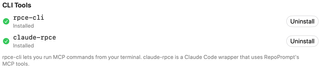
rpce-cli runs MCP commands from a terminal. claude-rpce wraps Claude Code so it can use RepoPrompt's MCP tools.
Each row reports whether its command is installed and offers Install, Update, or Uninstall as appropriate. Debug builds use their debug command names. Installing a CLI command and enabling a window's MCP access are separate steps.
JSON Configuration

Expand JSON Configuration to inspect and copy the JSON for an external client's MCP configuration. The generated command normally uses a managed link that survives app updates, with a bundled-path fallback. Add the configuration in your client, then connect it to RepoPrompt. If the client cannot find repoprompt-mcp after moving the app or switching app builds, copy the configuration again from the intended running app and update the client.
Use Tools to control individual tool availability. Tool access also remains subject to the target workspace and applicable approval rules.