OpenRouter
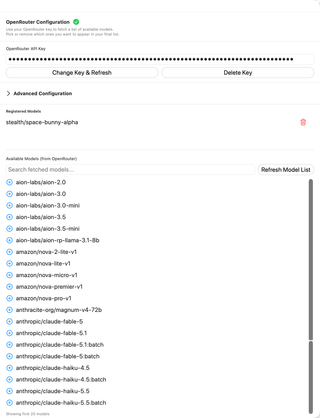
Manage the OpenRouter API key, fetch available models, and choose which models appear in RepoPrompt. Advanced configuration includes token limits and custom headers.
Open Settings → Models & Providers → OpenRouter. This page controls API access and which OpenRouter models appear in RepoPrompt. Models in the screenshot are examples of a fetched catalog, not fixed defaults.
For connection prerequisites, catalog references, capabilities, and account billing, see the OpenRouter provider reference. The sections below describe this settings pane's controls.
API key

Enter an OpenRouter key and choose Validate & Fetch. Once validated, the button reads Change Key & Refresh. Delete Key removes the stored credential. A green checkmark reports successful validation.
Advanced Configuration

Expand this section for provider settings and custom headers. Include default OpenRouter models controls inclusion of the app's default OpenRouter choices. Use Custom Settings exposes Max Tokens; its reset button restores 8192.
Custom headers are entered as a name/value pair and added with the plus button. Existing headers have individual delete controls. These are request settings, not additional model registrations.
Registered Models

This list contains models you explicitly registered for RepoPrompt's model list. The trash button removes that registration; it does not remove the model from OpenRouter's service.
Available Models
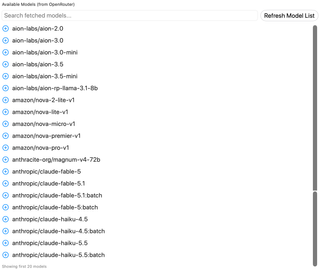
Refresh Model List fetches the provider catalog. Search fetched models… filters it by model identifier. The UI displays the first 20 matching models, so use search for identifiers farther down the catalog.
Use the plus button to register a model. Registered state changes the row's control so you can remove it again. Fetching a catalog does not automatically register every model in it.