Agent Sidebar Overview
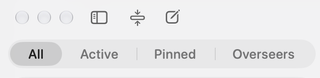
The Agent sidebar helps you start a conversation and find sessions in the current workspace. Its controls sit above the session list.
New Session
Select the New Session button, shown as a square with a pencil, to open a new Agent chat. Choose a workflow if you want one, then enter and send your task in the message editor.
Hide Sidebar
Select Hide Sidebar to give the conversation more room. Use the sidebar control again to show it, or use the configurable Toggle session sidebar shortcut, Option+Command+B by default.
Collapse or expand all groups
Select Collapse all sub-agent threads to close the expanded child-session groups in the selected tab. When all groups are collapsed, the control changes to Expand all sub-agent threads to reopen them. In the Overseers tab, the labels use overseer groups instead of sub-agent threads.
This changes the list view; it does not stop or delete the sessions. You can also expand or collapse individual parent rows.
Session filters
Use the filters above the search field to choose which sessions to show:
- All shows every session in the current workspace.
- Active shows sessions running now, waiting for you, or failed while you were away.
- Pinned shows sessions you pinned.
- Overseers groups sessions that oversee other sessions with the sessions they oversee.
Search the session list by entering text in Search sessions.
Session History
Below the filters and search field, the sidebar lists your sessions. Select one to return to its conversation; session groups and status indicators help you find work and see what needs attention. See Session History for browsing, organizing, and recovering sessions.
Workspace
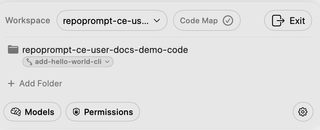
The workspace panel below the session list shows the current workspace and its folders.
Switch workspace
Select the workspace name to open Switch workspace and choose a workspace or manage workspaces. The folder list updates to reflect the selected workspace. See Manage Workspaces.
Code Map status
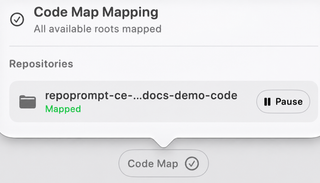
Select Code Map to see the mapping summary and status for each root. While indexing, the panel can show progress. Where available, use Pause, Resume, or Retry for a root. A root’s pause setting persists, so a paused root remains paused when you return. See Code Maps settings for global controls.
Folders
Each row identifies a workspace root. Git roots can show their branch or worktree context; the current session's worktree binding may also appear. Use Add Folder to add another root. Folder controls can include reordering and removal. See Worktrees for session bindings.
Models
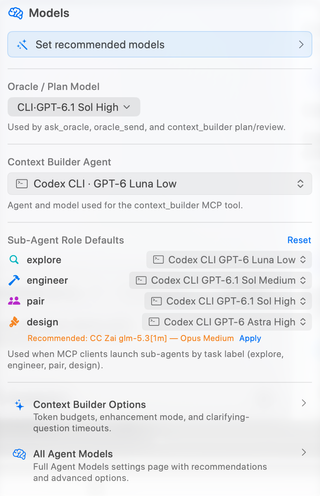
Select Models to open quick model settings. You can review recommendations, choose the Oracle or plan model and Context Builder agent, and set defaults for the explore, engineer, pair, and design sub-agent roles. The popover also links to Context Builder options and the full Agent Models settings. Available choices depend on your configured providers; see Providers & Models.
Permissions
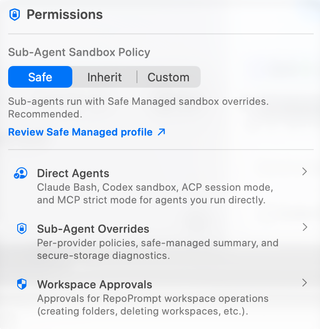
Select Permissions to choose the global sub-agent sandbox policy: Safe applies Safe Managed overrides, Inherit uses provider permissions, and Custom uses per-provider modes. The popover links to the policy details, direct-agent permissions, sub-agent overrides, and workspace approvals. See Agent Permissions and Workspace Approvals.
Settings
Select the gear icon to open Agent Mode Overview in Settings, where you can navigate to the full settings pages.
Exit workspace
Select Exit to leave the current workspace. The control may be unavailable while an exit cannot be performed.