Agent Mode Overview
Agent Mode is RepoPrompt's interface for conversations with coding agents. This page identifies the main areas and controls. For your first task, follow Getting Started; for workflow choices and best practices, read Going Deeper.
Welcome screen
A new session shows What are we building? and workflow cards. The arrows and page dots reveal more cards. The Workflow selector above the message editor opens the same catalog, including your custom templates. Selecting a workflow prepares instructions for the next message; it does not start work.
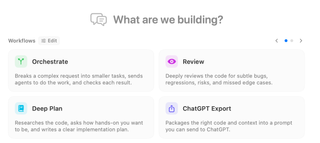
See Workflow Templates for what each choice does and how to configure the catalog.
Message composer
The Send a message… field is where you write the next request or follow-up. Its surrounding controls show the session's execution location, selected workflow, model, effort, and available capabilities.

| Control | What it shows or opens |
|---|---|
| Work locally / Execution location | The workspace checkout or worktree where the agent works. See Execution Location. |
| Workflow | Instructions selected for the next message. See Workflow Templates. |
| Provider/model and effort menus | The execution model and available reasoning settings. See Model and Effort. |
| Tools and Permissions | Provider capabilities and approval behavior. See Tools. |
| Attachment button | Files staged for the next message. See Image Support. |
| Send / Stop | Submit a message or stop active work. See Message Editor. |
Additional controls include Interviewer, Re-prompt, Agent Decisions, Auto Effort, Computer Use, and Overseer. Availability and enabled states depend on the session and connected provider. Hover over a control for its label or status.
Conversation and review cards
The conversation above the composer contains your messages, agent responses, and tool activity. Expand a tool card to inspect its arguments, output, or proposed diff. Questions, tool approvals, edit reviews, and project-hook decisions appear as separate cards when the session needs input.
Use the controls on the active card to respond. The composer is for messages and steering; it does not replace a pending approval or question card. See Approvals and Paused Sessions for the different requests.
Context drawer and Oracle
The file/context control beside Oracle shows selected-file and context-usage information. It opens the Context Composer drawer, which contains Selections, Prompt, and Context Builder tabs. The Oracle control opens the related consultation conversations.
See Context Builder for the drawer's controls, Prepare and Copy Context for manual packaging, and Oracle for consultations and grouped results.
Session sidebar and navigation
The session sidebar lists conversations in the workspace. Select a session to open its transcript; its status and attention indicators help you locate ongoing work or requests for input. Session actions let you organize and return to conversations without treating them as one shared chat.
Use Command+K for the session switcher in the focused window and Shift+Command+K to search across sessions. These are configurable defaults. Session History covers navigation and recovery, and Keyboard Shortcuts lists the bindings.