Building Context
The key to good AI responses is giving the right context - not too much, not too little. RepoPrompt Classic Edition gives you precise control over what context your AI sees.
Multi-Root Workspaces
RepoPrompt supports opening multiple root folders in a single workspace. All features work across roots:
- Cross-project context: Select files from your codebase and a third-party library to evaluate integration
- Code + docs: Work with your code and documentation site together to improve docs
- Monorepos: Navigate related packages, shared libraries, and services in one view
- Context Builder: Discovers relevant files across all roots automatically
Add roots via File → Add Folder to Workspace or drag folders onto the app.
Selection Modes (Classic Edition)
Every file can be included in one of three ways, giving you fine-grained control over token usage:
| Mode | What's Included | Token Impact | Best For |
|---|---|---|---|
| Full | Complete file content | Highest | Files you're actively editing |
| Slices | Specific line ranges | Medium | Large files where only part matters |
| Codemap | Function/type signatures only | Lowest (~10x smaller) | Reference files, APIs, dependencies |
Switching Modes (Classic Edition)
- Click a file to select it (Full mode by default)
- Right-click for mode options: show as Full or Codemap ("Show as API only")
- Files marked with
+in the tree have codemaps available
Selected Files Panel (Classic Edition)
The selected files panel shows your current selection with token counts. Use the controls to manage your context:
- Sort: Order by Name (A-Z, Z-A) or Tokens (Low-High, High-Low)
- Gear menu: View Mode, Collapse All Folders, Clear All Line Slices, Clear File Selection
- Per-file actions: Right-click to switch modes or clear slices on individual files
Using Slices (Classic Edition)
Slices let you include only specific line ranges from a file. Slices are created through MCP-connected agents:
- Context Builder: Automatically creates slices when curating context—it reads files and extracts only the relevant sections to fit your token budget
- MCP Agents: Any agent connected via MCP can use the
manage_selectiontool to create slices with specific line ranges and descriptions
When a file has slices, you'll see the line range (e.g., "L1-107") and a scissors icon. You can clear slices via right-click or the gear menu's "Clear All Line Slices" option.
Codemaps (Classic Edition)
Codemaps extract the "shape" of your code - function signatures, class definitions, type declarations - without implementation details. This gives AI structural understanding at 10x fewer tokens.
What Codemaps Include
- Function and method signatures (names, parameters, return types)
- Class and struct definitions
- Type aliases and interfaces
- Protocol/interface declarations
- Important constants and enums
Supported Languages
Codemaps are powered by tree-sitter and support:
Swift, JavaScript, TypeScript, Python, C, C++, C#, Rust, Go, Java, Dart, PHP
Codemap Modes (Classic Edition)
| Mode | Behavior | When to Use |
|---|---|---|
| None | No codemaps included | When you don't need structural context |
| Auto (Default) | Intelligently selects relevant definitions | Most use cases - balanced and smart |
| Complete | All definitions from scanned files | Architectural understanding, full API overview |
Auto-Codemap Management (Classic Edition)
When you select files in Full or Slices mode, RepoPrompt automatically adds codemaps for related files:
- Dependencies and imports get codemap context
- Related types and protocols are included
- You get structural context without manually selecting every file
Manual codemap operations (promote/demote) disable auto-management for that session.
Architecture Tip: For architectural questions, try Complete codemaps with no full files selected. This gives AI a bird's-eye view of your entire codebase structure at minimal token cost.
File Tree (Classic Edition)
The file tree helps AI understand your project structure and navigate relationships between files.
Tree Options
| Option | What It Shows | Tokens |
|---|---|---|
| Auto | Balanced tree, trimmed if needed | Low-Medium |
| Full | Complete directory structure | Higher |
| Selected | Only selected files and parents | Lowest |
| None | No file tree | Zero |
Codemap Markers (Classic Edition)
Files with available codemaps show a + marker in the tree. This helps AI know which files have structural information available.
Presets
Presets save and restore your complete context configuration - file selection, prompt, and app settings - in one click.
What Presets Store
- File selection: Which files are selected and in what mode
- Prompt content: Your instruction text
- Copy format: How the prompt is formatted for export
- App settings: File tree mode, codemap mode, etc.
Built-in Presets
| Preset | Purpose |
|---|---|
| Standard | Clean formatting for any AI (ChatGPT, Claude, etc.) |
| Pro Edit | XML format for structured changes - paste response back to apply |
| Plan | Optimized for architectural planning and design discussions |
Stored Prompts (Classic Edition)
Save frequently-used instructions separately from presets. Stored prompts are reusable text snippets you can inject into any context.
Creating Stored Prompts
- Write your instruction in the prompt area
- Click the prompt menu → "Save Prompt"
- Name it (e.g., "Code Review Guidelines", "Refactoring Instructions")
Using Stored Prompts
- Access from the prompt dropdown menu
- Click to insert into current prompt
- Combine multiple stored prompts as needed
Token Management
The token counter shows your current context size. Different models have different limits:
| Model | Context Window | Notes |
|---|---|---|
| GPT-5.4 | 272K–1M tokens | Codex standard: 272K. API: 1M+. ChatGPT: 30k (Plus) / 60k (Pro). GPT-5.5 is Codex CLI-only (Low/High) or ChatGPT Pro web (Pro); it is not an API model. |
| Claude 4.5 | 200K tokens | Claude Code & Desktop. 1M via API at higher rates |
| Gemini 3.0 Preview | 200K tokens | Standard pricing. 1M+ at higher pricing tiers |
Token Reduction Strategies
If you're hitting token limits:
- Use codemaps: Switch reference files from Full to Codemap mode
- Use slices: Include only relevant sections of large files
- Be selective: Remove files that aren't essential for the task
- Simplify tree: Use "Selected" tree mode instead of "Full"
- Consider Gemini: For massive contexts, Gemini's 1M+ tokens helps
Context Builder (Classic Edition)
Let AI select your context automatically. The Context Builder explores your codebase and recommends files based on your task.
How It Works
- Describe what you're trying to accomplish
- Context Builder analyzes your codebase structure
- Files are selected and organized by relevance
- Review the selection, then use it for Chat or Compose
Best Results
- Be specific about your task ("Add dark mode to settings page")
- Works best with CLI Providers (Claude Code or Codex) connected
- Results include both files and a generated prompt summarizing context
- You can refine the selection after it runs
- For Codex users, the Context Builder default is GPT-5.5 Low for repeated discovery and explore passes. Use GPT-5.5 High (Codex CLI) for heavier planning, review, or pair work after discovery.
Workflow Integration (Classic Edition)
Context Builder works great as the first step in complex workflows:
- Run Context Builder with your task description
- Review and adjust the file selection
- Use Compose to get a plan from a powerful model
- Use Chat with Pro Edit to implement the plan
Video Tutorials
See context building in action:
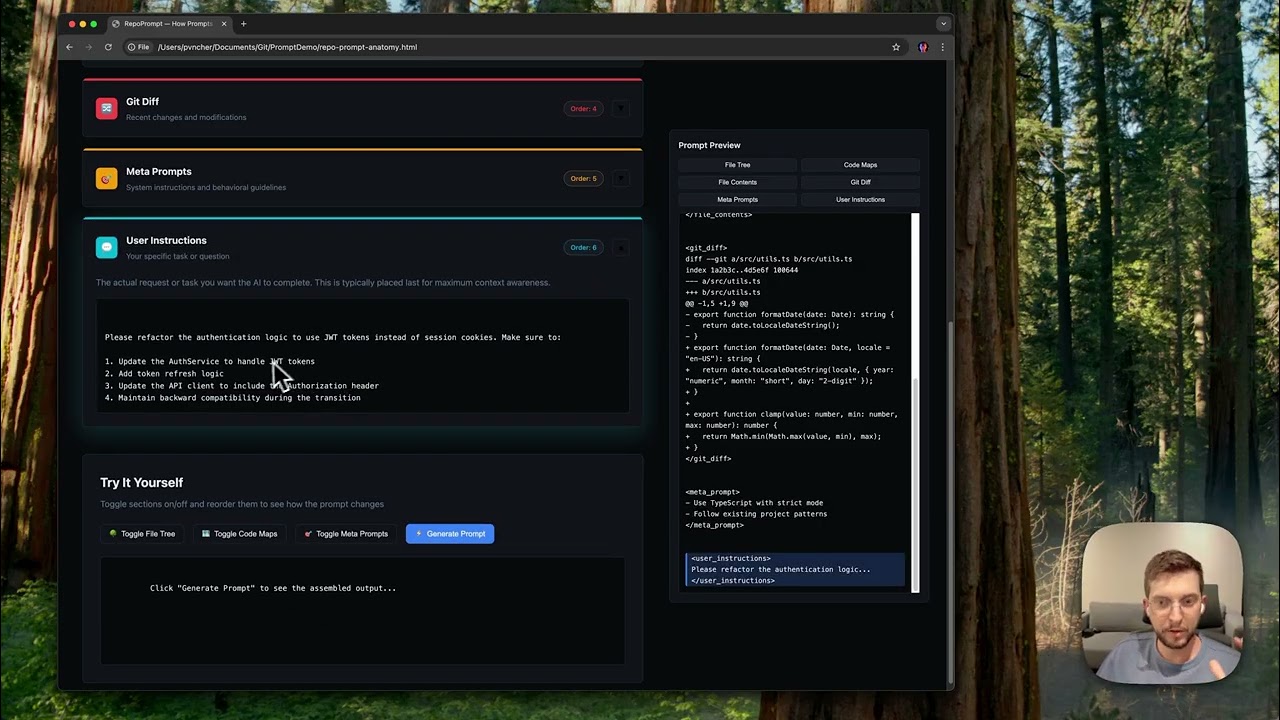 What is RepoPrompt for? Interactive prompt anatomy demo at repoprompt.com/prompt-anatomy
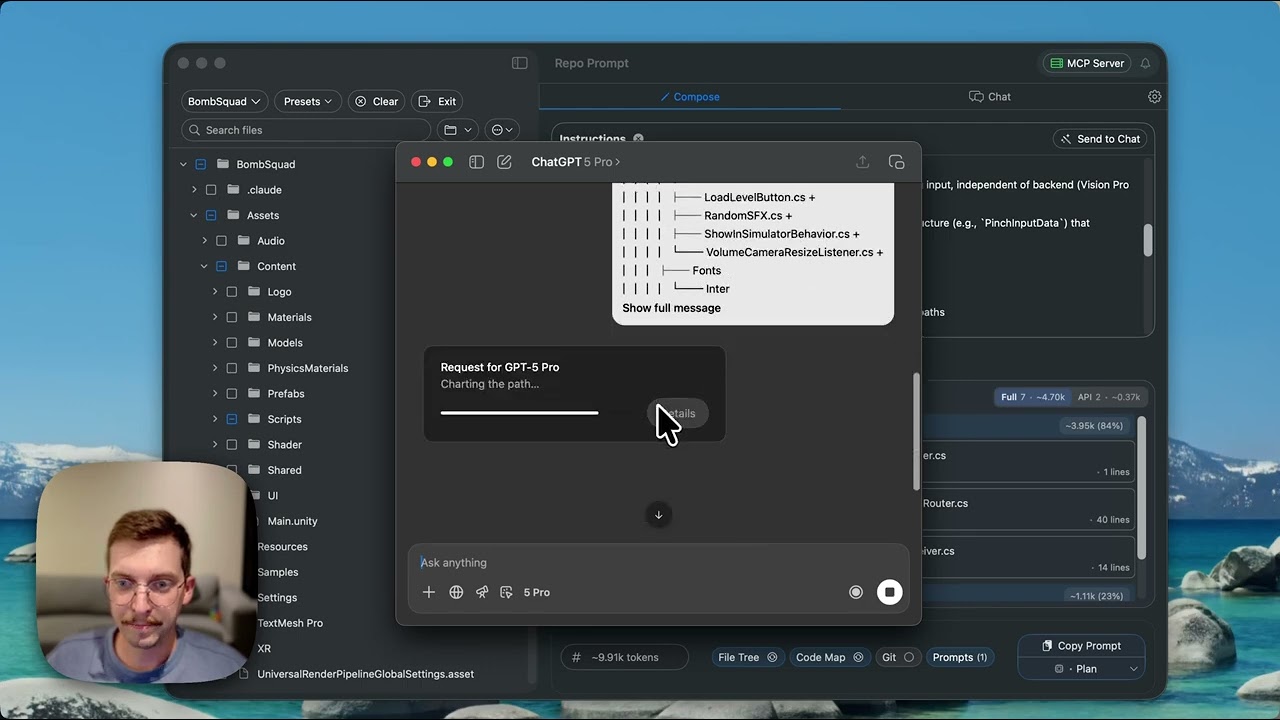 Context Builder 2.0 AI-powered context selection with CLI Providers (Codex, Claude, Gemini)
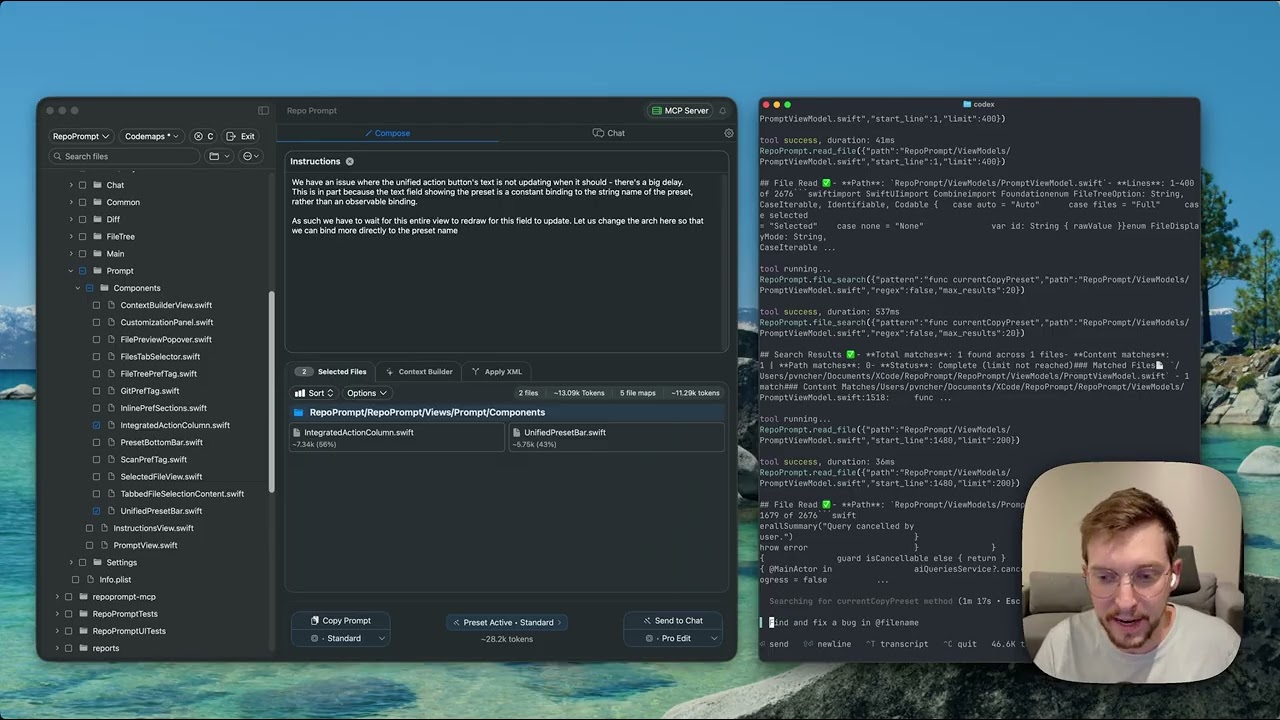 Accelerate Agent Orientation Bootstrap agents with rich context, skip the research phase