File Selection
Every file can be included in one of three modes, giving you fine-grained control over token usage.
Selection Modes
| Mode | What's Included | Token Impact | Best For |
|---|---|---|---|
| Full | Complete file content | Highest | Files you're actively editing |
| Slices | Specific line ranges | Medium | Large files where only part matters |
| Codemap | Function/type signatures only | Lowest (~10x smaller) | Reference files, APIs, dependencies |
Switching Modes
- Click a file to select it (Full mode by default)
- Right-click for mode options: show as Full or Codemap ("Show as API only")
- Files marked with
+in the tree have codemaps available
Selected Files Panel
The selected files panel shows your current selection with token counts. Use the controls to manage your context:
- Sort: Order by Name (A-Z, Z-A) or Tokens (Low-High, High-Low)
- Gear menu: View Mode, Collapse All Folders, Clear All Line Slices, Clear File Selection
- Per-file actions: Right-click to switch modes or clear slices on individual files
Using Slices
Slices let you include only specific line ranges from a file. Slices are created through MCP-connected agents:
- Context Builder: Automatically creates slices when curating context—it reads files and extracts only the relevant sections to fit your token budget
- MCP Agents: Any agent connected via MCP can use the
manage_selectiontool to create slices with specific line ranges and descriptions
When a file has slices, you'll see the line range (e.g., "L1-107") and a scissors icon. You can clear slices via right-click or the gear menu's "Clear All Line Slices" option.
Slice Power: Context Builder can turn a 2000-line file into a 50-line slice containing just the relevant function—massive token savings while preserving the context AI needs.
File Tree Options
The file tree helps AI understand your project structure and navigate relationships between files.
| Option | What It Shows | Tokens |
|---|---|---|
| Auto | Balanced tree, trimmed if needed | Low-Medium |
| Full | Complete directory structure | Higher |
| Selected | Only selected files and parents | Lowest |
| None | No file tree | Zero |
Files with available codemaps show a + marker in the tree. This helps AI know which files have structural information available.
File Filtering
RepoPrompt respects your .gitignore files automatically. If files are missing from the tree, they may be filtered out. Access filter settings via the filter icon in the file tree toolbar.
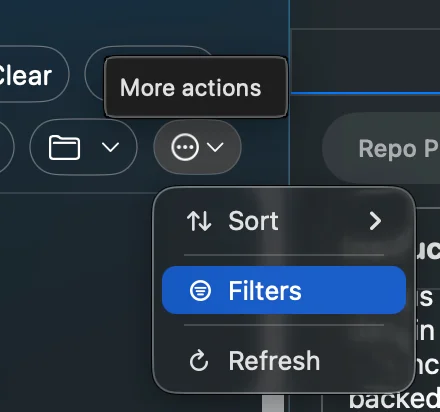
Filter options:
- Local ignore file: Create workspace-specific ignore patterns via the UI
- Global ignores: Set patterns that apply to all workspaces
- Negative patterns: Use
!prefix to counter gitignore patterns you need to override (e.g.,!dist/important.js)
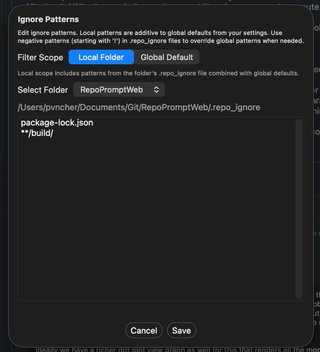
Tip: If a file you need isn't showing up, check your gitignore patterns and use negative patterns to override them.
Git Integration
Include diffs of changed files in your prompt. Access git controls via the "Git" button in the bottom bar.
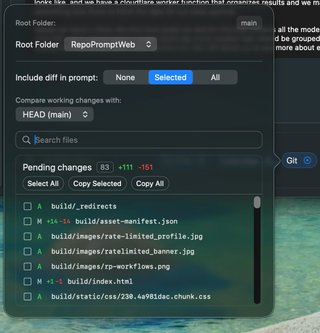
Git controls:
- Compare with: Select which branch or tag to diff against (HEAD, main, etc.)
- Include diff in prompt: None, Selected files only, or All changed files
- Pending changes: View all modified files with line counts (+/-)
- Select files: Check files to include their diffs in context
Both Compose and Chat have separate git settings. The Review and Diff Follow-up presets auto-configure this to include diffs for selected files.
Tip: Use git diffs to give AI context about recent changes when debugging issues or continuing work on a feature.