First Prompt
Let's build your first AI prompt with rich code context. This takes about 2 minutes.
Step 1: Open Your Project
- Launch RepoPrompt
- Go to File → Open (or
⌘+O) - Select your project folder
Your workspace loads with the file tree on the left.
Step 2: Select Files
Click files in the tree to add them to your context. Selected files appear in the Selected Files panel.
Tips for good selection:
- Select files you want the AI to understand or modify
- Include related files (imports, types, tests)
- Watch the token counter - stay within model limits
tip
Start small: For your first prompt, select 2-3 related files. You can always add more context later.
Step 3: Write Your Prompt
In the Instructions area, describe what you want:
Add input validation to the login form. Check that:
- Email is a valid format
- Password is at least 8 characters
- Show error messages below each field
Be specific about what you want. Good prompts include:
- The task or goal
- Any constraints or requirements
- Expected behavior or output
Step 4: Copy and Use
Option A: Copy to External AI
- Click Copy (or
⌘+C) - Paste into ChatGPT, Claude.ai, or any AI
- Get your response
- If it contains code changes, paste back into Apply view
Option B: Use Built-in Chat
- Click New AI Chat
- Select your model and settings
- Send - your context is automatically included
- Review changes in the diff view
Step 5: Apply Changes
When the AI suggests code changes:
- Review each file's changes in the diff view
- Click Apply All or select specific files
- Changes are written to your files
- Use Undo if needed
Watch It In Action
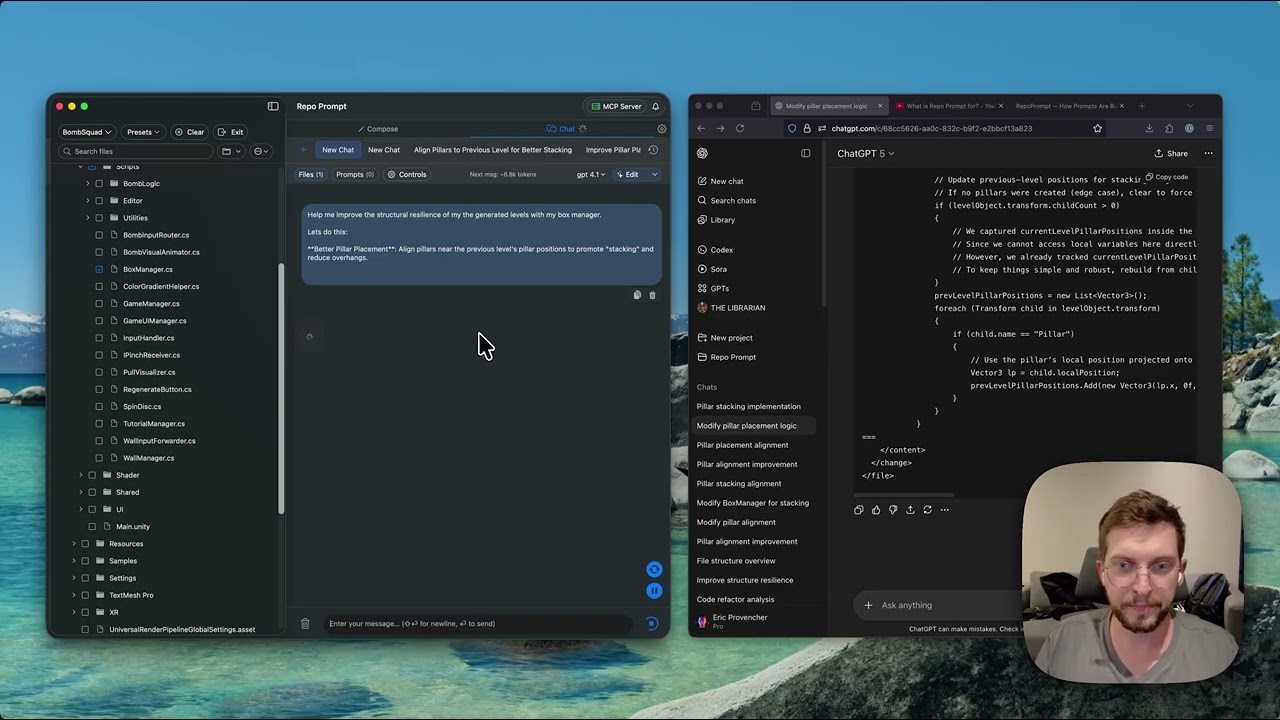 Rapid Iteration with RepoPrompt See the complete prompt-building workflow in action