Interface Overview
RepoPrompt's interface is designed around three main views: Compose, Chat, and Apply. Here's how they work together.
Main Views
Compose View
The primary workspace where you build context and craft prompts.
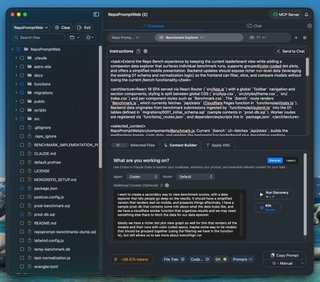
Key elements:
- File Tree (left): Browse and select files from your workspace
- Selected Files Panel: View and manage your current selection
- Instructions Area: Write your prompt/task description
- Bottom Bar: Copy presets, token count, Copy and Chat buttons
Chat View
Have AI conversations with your code context automatically included.
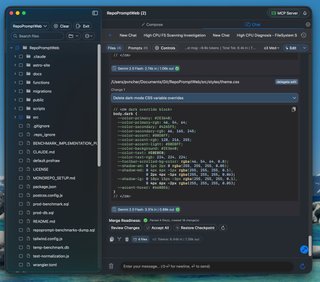
Key elements:
- Message Thread: Conversation history with AI responses
- Input Bar: Send messages, toggle Pro Edit mode
- Model Selector: Choose which AI model to use
- Chat History Tabs: Switch between conversation sessions
Apply View
Review and apply code changes from AI responses. Paste Pro Edit XML or use the built-in chat to generate changes.
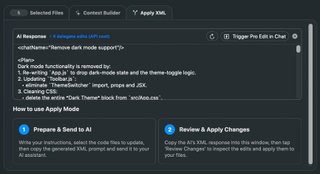
Key elements:
- Paste Area: Paste AI responses containing code changes
- Process Button: Parse XML and send to chat for parallel edits
Review View
After processing, review each file's changes before applying.
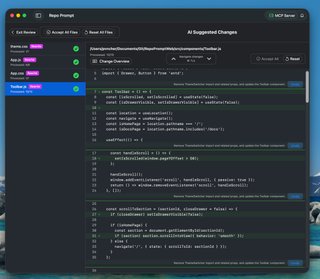
Key elements:
- File Cards: Each modified file shown with change preview
- Diff View: Line-by-line comparison of changes
- Apply Controls: Apply all, apply selected, or reject changes
Navigation
Tab Bar
Switch between views using the tab bar at the top:
- Compose tabs: Multiple compose sessions (like browser tabs)
- Chat: Access the chat interface
- Apply: Review pending changes
Toolbar
Quick access to common actions:
- Settings (gear icon): Open preferences
- New Tab: Create a new compose tab
- Search: Find files in your workspace
Compose View Details
File Selection Panel
The left sidebar shows your workspace files:
- Click a file to select it (adds to context)
- Right-click for options: Full, Slices, Codemap modes
- Search to filter files by name
- Files with
+marker have codemaps available
Instructions Area
Where you write your prompt:
- Prompt dropdown: Access saved prompts
- System prompt toggle: Include/exclude system instructions
- Edit mode toggle: Enable Pro Edit XML format
Bottom Bar
The control center for your prompt:
- Copy Preset dropdown: Choose format (Standard, Pro Edit, Plan, etc.)
- Token counter: Shows current context size
- Copy button: Copy prompt to clipboard
- New Chat button: Send directly to Chat view
Keyboard Shortcuts: ⌘+C to copy, ⌘+N for new chat, ⌘+F to search files, ⌘+, for settings.