Discovery (Context Builder)
The Context Builder is an AI agent that researches your codebase and selects relevant files for your task. It's the foundation of every RepoPrompt workflow.
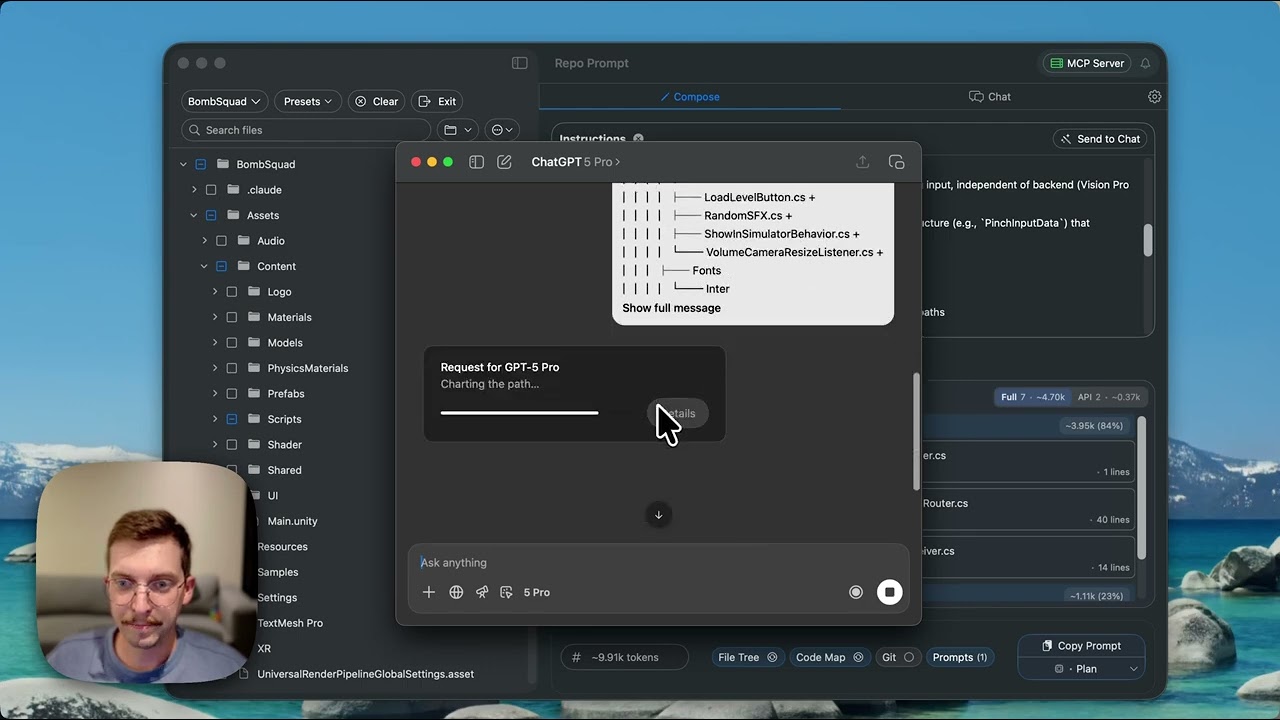 Context Builder 2.0 AI-powered context selection with CLI Providers
How Context Builder Works
- Task analysis: You describe what you're trying to accomplish
- Codebase exploration: The agent uses MCP tools to search and read your code
- File selection: Relevant files and codemaps are identified
- Token optimization: Selection is refined to fit your token budget
- Handoff prompt: A non-opinionated summary is generated
The Handoff Prompt
The Context Builder produces a "handoff prompt" that contains:
- Clarified instructions: Your task, refined with specifics
- Open questions: Ambiguities you may want to address
- File relationships: How discovered files relate to each other
- Selected context: Files, slices, and codemaps
Non-Opinionated Discovery: The Context Builder is explicitly instructed to gather facts, not propose solutions. This prevents bias in the handoff prompt and ensures the implementing model gets complete, unbiased context.
Token Budget
The Context Builder targets a specific token budget to ensure your prompt fits the effective context window of your target model:
| Target | Budget | Use Case |
|---|---|---|
| ChatGPT Pro | 60k tokens (default) | Pasting into ChatGPT web (Pro plan) |
| ChatGPT Plus | 30k tokens | Pasting into ChatGPT web (Plus plan) |
| API / Codex CLI | 128-200k tokens | Direct API, Codex CLI, Claude Code |
| Coding agents | 24-32k tokens | Kickstarting agent sessions with context |
File Slicing
One of Context Builder's most powerful tools is file slicing. Instead of including entire files, it can extract only the relevant sections:
- Massive files become manageable
- Irrelevant code is excluded
- Token budget is used efficiently
- Slices include line numbers for easy reference
CLI Provider Integration
Context Builder works best when connected to a CLI provider:
| Provider | Model Used | Subscription |
|---|---|---|
| Claude Code | Claude Sonnet 4.5 | Claude Pro/Max |
| Codex CLI | GPT-5.5 Low for discovery/explore; GPT-5.5 Medium for engineer/default implementation; GPT-5.5 High for heavier review/planning after discovery | OpenAI Plus/Pro |
| Gemini CLI | Gemini 2.5 | Google AI |
| Cursor CLI | Discovers models dynamically from your Cursor installation | Cursor Pro/Business |
| OpenCode | Multiple providers including some free models | Various subscriptions |
For Codex users, our current default is GPT-5.5 Low for discovery and Context Builder. It is the practical Codex CLI default for repeated exploration; use GPT-5.5 Medium for engineer/default implementation, and switch to GPT-5.5 High for heavier planning, review, or pair sessions after discovery.
Running Context Builder
- Open your workspace in RepoPrompt
- Click Context Builder in the toolbar
- Describe your task clearly and specifically
- Wait for the agent to explore and select files
- Review the selection and handoff prompt
- Proceed to your chosen implementation path
Tips for Better Results
- Describe what you need, not where to look: The builder explores autonomously. "Add JWT authentication to the API" works better than listing specific files
- Mention what you know: If you know key areas, modules, or patterns, include them — the builder uses these as starting hints but explores beyond them
- Don't over-constrain: Being too prescriptive narrows discovery. Let the builder find related code you might not know about
- Review open questions: The handoff prompt flags ambiguities — address them before handing off to implementation
- Adjust token budget for your target: Lower for agent handoffs (24-32k), higher for API/CLI usage (128-200k)