Setup Guide
Get RepoPrompt's MCP server connected to your preferred AI tool. The server enables external agents to use RepoPrompt's context building, code intelligence, editing, and workspace capabilities.
Quick Setup
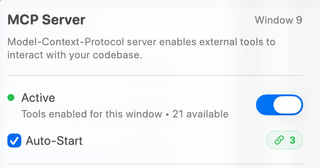
- Open a workspace in RepoPrompt, then click the toolbar's MCP Server icon or open Settings → MCP Server.
- Enable MCP tools for that window. Active confirms both a running listener and enabled window access; Waiting for listener… means the window is enabled but the listener is not ready.
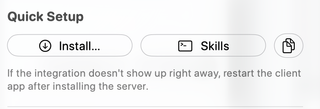
- Under Quick Setup, open Install… (shown as Install MCP… in Settings) and choose your client.
- Restart or reconnect that client if it does not discover the integration immediately. Respond to any connection request shown in RepoPrompt.
- Discover and bind the intended workspace before running repository tools.
Client-Specific Instructions
The installer generates configuration for the RepoPrompt CE app you are running. Use it instead of carrying an old Classic executable path into the new client configuration.
Cursor
Open Quick Setup → Install… → Cursor. RepoPrompt opens Cursor's MCP installation link with its generated command configuration. Complete the client-side installation, then reconnect or restart Cursor. Approve the connection in RepoPrompt if requested.
Claude Code
Choose Claude Code (per-project) from the Install menu with the intended workspace folders loaded. The installer configures those projects. Alternatively, copy the generated JSON and add its server entry using your client's MCP configuration workflow. Restart the client when necessary and verify that it discovers RepoPrompt's tools.
Codex CLI
Choose Codex CLI from the Install menu. RepoPrompt updates the Codex MCP configuration with the generated app bridge and its supported timeout settings. Restart or reconnect Codex after installation. Use the installer rather than a hand-written codex.toml example from an older guide.
Other Supported Clients
The current Install menu also offers VS Code, OpenCode, and Claude Desktop. OpenCode installation targets its CLI configuration; Claude Desktop installation reports if the application is not found. Client installation and provider authentication are different operations: installing MCP does not sign a CLI agent in to its AI service.
Other MCP Clients
Copy the JSON with the copy button beside Skills, or expand JSON Configuration in Settings. Add the generated server entry to your client's MCP server configuration. The client launches the bundled repoprompt-mcp bridge over stdio, and the bridge connects to the app locally.
Configuration Format
The generated app-backed configuration has this shape. The command below is a placeholder; replace it with the exact absolute path copied from the running app.
{
  "mcpServers": {
    "RepoPromptCE": {
      "command": "/absolute/path/copied/from/RepoPrompt/repoprompt-mcp",
      "args": ["--backend", "app"]
    }
  }
}
The --backend app arguments explicitly select the running app backend. The command normally uses a managed user-space link, with a bundled executable path as a fallback. RepoPrompt release and debug builds have distinct identities. Always copy the configuration for the build you intend to connect to.
Connection Approval
When an external client needs approval, RepoPrompt shows a Connection Request overlay with its client and, when available, executable information. Review the process before choosing Allow Session, Allow Once, or Deny. With strict connection approval off, Always allow this client can save approval by app name, and common names may connect automatically. Enable Strict connection approval to require per-run approval instead of trusting saved or built-in client names.
Connection approval admits the client; it does not approve every workspace mutation, file edit, or agent operation. Those actions remain subject to their own policies. See Connection Management.
Verifying the Connection
Check that the intended RepoPrompt window reports Active and that the connection badge shows an attached client. In the external client, ask the agent to discover available tools, call bind_context with op="list", and bind the intended workspace roots. Then request get_file_tree or a workspace_context snapshot.
{"op":"bind","working_dirs":["/Users/example/Project"]}
This JSON is an arguments object for bind_context, not a complete client configuration. Use exact workspace root paths; see context binding for tab-specific isolation.
Terminal Access
In Settings, the CLI Tools section installs rpce-cli for shell access and claude-rpce as the Claude Code wrapper. Debug builds use rpce-cli-debug and claude-rpce-debug. Follow the row's Install or Update action, then use the command name it displays. The app must be running with MCP access enabled for app-backed calls.
For example, after installing the release CLI, rpce-cli -e 'call get_file_tree {"type":"roots"}' calls the same repository tool from a shell. The CLI supports JSON arguments; it does not use the obsolete rp-cli tree and rp-cli context --all examples from Classic documentation.
Workflow instructions
Use Quick Setup → Skills to install MCP or CLI workflow instructions for your client. The installer writes skill folders or prompt files, depending on the destination, for commands such as /rp-orchestrate and /rp-build. It does not install the server connection itself. See Workflow Commands for destinations, variants, and the complete command catalog.
Troubleshooting Setup
Use the MCP Troubleshooting FAQ to distinguish connection failures, missing tools, wrong context bindings, and model-service errors.
Client can't find repoprompt-mcp
Re-copy the configuration from the installed RepoPrompt app and check that its command path exists. Avoid pointing a RepoPrompt client at an old Classic app or a different debug build. If the CLI Tools row reports Needs update, use Update before reconnecting.
No approval dialog appears
Check window access and listener status first. Bring RepoPrompt forward and look for a pending connection request. Inspect Status Dashboard and any error indicator in Settings before changing configuration. A client that was never launched or has the wrong executable path cannot reach the approval step.
Connection keeps dropping
Restart the external client after confirming the app and listener are running. Re-copy configuration after changing app builds. The app bridge uses UNIX sockets; the current setup has no user-facing Filesystem transport switch, and firewall or VPN changes are not the first troubleshooting step.
Tools not appearing in client
Check MCP Tools and the target window's access switch. Disabled tools, global Code Maps suppression, and connection policy can reduce the advertised list. Reconnect or restart a client that cached an earlier list; the screenshot's 21 available is not a fixed count for every build or session.
Once connected, explore the Tools Reference, use the Setup Wizard for model recommendations, or read Connection Management for workspaces and compose tabs.