API Providers
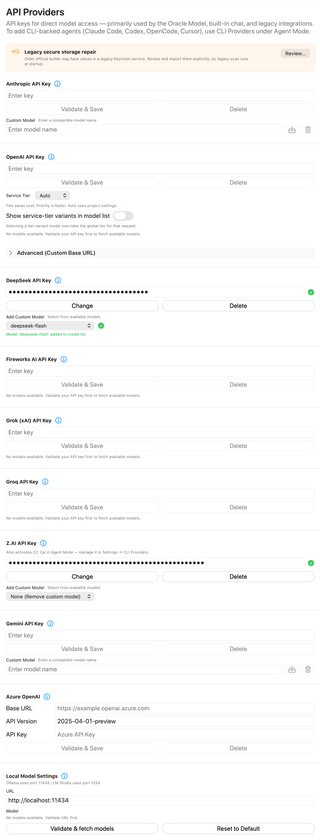
Configure direct API-provider credentials and provider-specific connections used by RepoPrompt’s model features. These API connections are separate from the coding-agent runtimes configured in CLI Providers.
Open Settings → Models & Providers → API Providers. These connections primarily serve the Oracle Model, built-in chat, and legacy integrations. For coding-agent runtimes, use CLI Providers. The masked keys and model selections in the screenshot are examples.
Credentials and model choices
For the difference between a coding-runtime login and an API credential, and how saved keys are used, see Do I Need an API Key?.
For a provider, enter its key and choose Validate & Save. A validated entry displays a checkmark and changes the button label to Change. Delete removes that stored provider credential. The information button opens the provider's reference page.
Where model discovery is supported, validate first to populate Add Custom Model. Select a model to add it to RepoPrompt's model choices; None (Remove custom model) clears that custom choice. Where the UI instead offers a text field, enter a compatible model identifier and use its save button. Validation contacts the selected provider; it is not an offline format check.
Legacy secure storage repair

Older official builds may have credentials in a legacy Keychain service. Review… opens an explicit review/import flow; no legacy scan runs at startup. Imported values are verified, and legacy values are retained by default for rollback. Deleting a legacy value is a separate action.
Follow Recover Credentials After an Upgrade for scan results, replacement conflicts, Keychain prompts, and the optional legacy deletion step. Storage verification is separate from validation with the provider's service.
Anthropic
Provider reference: Anthropic API.
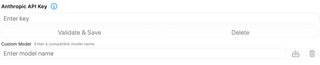
Configure the direct Anthropic API key here. The custom-model field accepts a compatible Anthropic model identifier. This is separate from signing into Claude Code in CLI Providers.
OpenAI
Provider reference: OpenAI API.
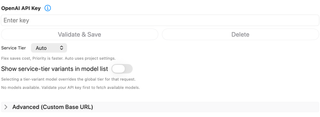
Validate the key to fetch available models. Service Tier offers Auto, Default, Flex, and Priority. Auto follows the API project's settings. The pane describes Flex as a cost-oriented option and Priority as a speed-oriented option; availability depends on the provider and model.
Show service-tier variants in model list exposes tier-specific model choices. Selecting one overrides the global tier for that request.
Expand Advanced (Custom Base URL) to configure and validate an alternate OpenAI endpoint. For a separate OpenAI-compatible provider configuration, use Custom API.
DeepSeek
Provider reference: DeepSeek.
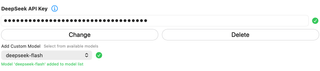
Validate the DeepSeek API key, then choose a discovered custom model if needed. The selected model and success message show what has been added to the model list; the pictured model is not a required default.
Fireworks AI
Provider reference: Fireworks AI.

Configure a Fireworks AI key. Model choices become available after validation; an empty discovery list is shown with guidance to validate first.
Grok (xAI)
Provider reference: Grok / xAI API.

Configure direct xAI API access and discover available models. A saved xAI API key is also passed to Grok Build for Agent Mode, Context Builder, Oracle, Chat, and model discovery (including Connect), even when you are signed in with grok login. Grok chooses which credential each request uses; requests that use the key are billed to your xAI API account.
Groq
Provider reference: Groq.

Configure a Groq API key and validate it before selecting a discovered model. Groq and Grok (xAI) are different provider entries.
Z.AI
Provider reference: Z.AI API.
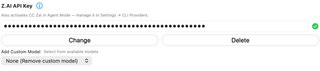
Configure the Z.AI key and optional custom model. Unlike most entries on this page, this credential also activates CC Zai in Agent Mode. Manage that runtime's configuration in CLI Providers.
Gemini
Provider reference: Gemini API.
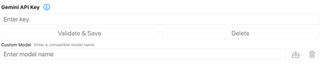
Configure the Gemini API key for direct model access. Use the custom-model field and its save control for a compatible model identifier. This is not the Google Antigravity CLI setup.
Azure OpenAI
Provider reference: Azure OpenAI.
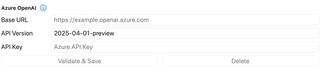
Enter the Azure resource Base URL, API Version, and API Key, then choose Validate & Save. The displayed API-version value is an example from the capture, not a recommendation for every Azure deployment.
After discovery, the implementation can offer Add Custom Deployment to pin a deployment. Clearing that choice returns to the discovered deployment priority.
Local Model Settings
Provider reference: Local Models.
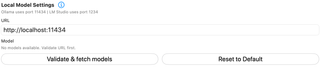
Enter the URL of your running local model server, then choose Validate & fetch models. Once discovery succeeds, select a model. For an already validated configuration, the button becomes Refresh models.
The pane identifies common ports: 11434 for Ollama and 1234 for LM Studio. Reset to Default restores the local configuration defaults. It does not install or start a model server.