CLI Providers
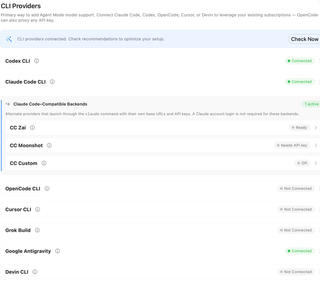
Connect coding-agent runtimes and configure their authentication, permissions, tools, and compatible backends.
Open Settings → Agent Mode → CLI Providers. Expand a provider’s row to see its available controls. The information button opens the provider’s website or documentation. Controls change with runtime availability and connection state. Screenshots illustrate the controls; the selections shown are examples rather than recommended defaults.
Connection and setup controls
Connect checks whether RepoPrompt can use a provider. For providers with an established connection, Test Connection checks it again. Errors appear in the provider card or a result dialog. Where available, Save Trace to Downloads exports a diagnostic trace after a failed test.
Status badges distinguish connection or installation availability from backend configuration. Compatible backends may be Off, need an API key, or be Ready; use Test Backend to check the configured route rather than treating readiness as a successful request.
The Check Now banner opens setup recommendations when the app has connected CLI providers. It is separate from the individual connection tests.
The inline Permissions or Permissions & Runtime controls apply to agents launched directly from RepoPrompt. Open Agent Permissions takes you to Agent Permissions, where MCP-launched sub-agent policy is configured separately.
Plan usage
Plan usage controls appear inside the connected Codex CLI and Claude Code CLI cards. Usage-source setup is separate from connecting the coding runtime. The Show usage limits when available preference in Agent Mode Overview controls visibility; the provider's source must also be enabled or connected before readings are available. Use Refresh to request an updated reading. These controls report account usage; Usage balancing separately controls whether it influences model selection.
Codex CLI
Provider reference: Codex CLI.
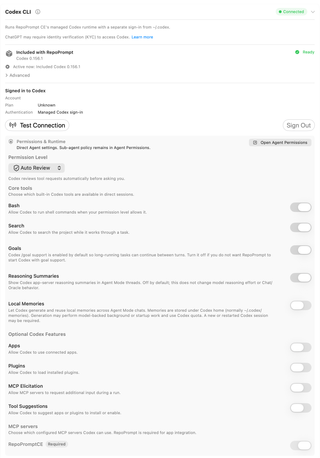
RepoPrompt uses a managed Codex runtime and a managed sign-in separate from your ordinary ~/.codex sign-in.
Runtime and sign-in
ChatGPT may require identity verification (KYC) before Codex access is available.
- Included with RepoPrompt shows the bundled runtime’s version and availability. The active-runtime summary identifies what this app launch is using.
- Under Advanced, open the runtime menu and select a detected executable, or choose Choose… to select a custom Codex executable. RepoPrompt checks its version and reports availability or compatibility problems.
- In the same runtime menu, select Included Codex [version] to switch the pending choice back to the bundled runtime.
- Connect checks the selected runtime’s connection. When sign-in is needed, use Login with ChatGPT or Use device code instead. The device-code flow provides Copy code and Open verification page; keep the panel open while completing the browser step.
- After authentication, the account summary shows account, plan, and authentication information. Test Connection checks the integration again.
- Sign Out requires confirmation to stop Codex sessions and sign out of the managed account.
Runtime selection takes effect on the next RepoPrompt launch, when the model list is refreshed. Saved model choices are preserved. Custom executables are not managed or verified by RepoPrompt and may be incompatible with its integration; the version check does not guarantee full compatibility.
Permission Level
- Read Only uses a read-only sandbox with approvals requested when needed.
- Default allows workspace writes and asks you for approvals when needed.
- Auto Review allows workspace writes and uses automatic review of tool requests before asking you.
- Full Access removes the sandbox restriction and runs without approval prompts.
Core tools and runtime features
Each switch enables or disables the named capability:
- Bash permits Codex shell commands within the selected permission level.
- Search permits built-in project search while Codex works.
- Goals enables Codex goal support for tasks that continue between turns.
- Reasoning Summaries shows Codex reasoning summaries in Agent Mode. It does not change model reasoning effort or Chat/Oracle behavior.
- Local Memories permits Codex to generate and reuse local memories across Agent Mode chats. Memories are stored under the runtime’s Codex home. Generation can perform background or startup model work and consume Codex quota; applying the change may require a new or restarted session.
Import user Codex MCP servers

RepoPrompt's managed Codex sign-in and configuration are separate from your standalone Codex setup. Import user Codex MCP servers… reviews servers from your user Codex configuration for import; they are not shared with Agent Mode automatically. The summary lists servers available to import. Review the requested servers before importing them, then control their availability in MCP servers.
Optional Codex Features
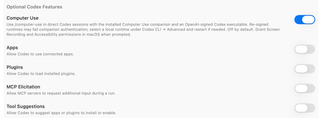
- Computer Use enables
/computer-usein direct Codex sessions. It requires the Computer Use companion and an OpenAI-signed Codex executable, plus macOS Screen Recording and Accessibility permissions when requested. A re-signed runtime can fail companion authentication; select a compatible local runtime under Codex CLI → Advanced and restart the session if needed. This option is off by default. - Apps permits use of connected apps.
- Plugins permits loading installed plugins.
- MCP Elicitation permits MCP servers to request additional input during a run.
- Tool Suggestions permits suggestions to install or enable apps and plugins.
Under MCP servers, toggle the configured servers that Codex may use. RepoPromptCE is required for the integration and cannot be disabled here. This list is read from RepoPrompt’s isolated Codex configuration.
Claude Code CLI
Provider reference: Claude Code CLI.
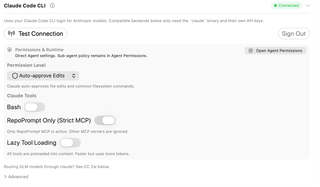
Claude Code uses the installed claude command and its login for Anthropic models. Complete its terminal login if necessary, then select Connect:
claude login
Test Connection rechecks access. Sign Out clears RepoPrompt’s recorded Claude connection state; it is not a replacement for logging out of the standalone CLI.
Permission Level
- Require Approval asks before running tools.
- Auto-approve Edits automatically approves file edits and common filesystem commands.
- Auto (Preview) approves tool calls that pass background safety checks. The provider treats this as a preview feature.
- Full Access runs tools without approval prompts.
Claude Tools
- Bash enables or disables Claude’s shell tool.
- RepoPrompt Only (Strict MCP) restricts the session to RepoPrompt’s MCP server when enabled. When disabled, MCP servers from the Claude configuration may also be loaded.
- Lazy Tool Loading lets Claude search for tools as needed, reducing context use but adding discovery latency. With it disabled, tools are preloaded into context.
Changes to Claude tool settings apply to the next Claude turn.
Advanced: Sys Prompt Packaging
Expand Advanced inside the Claude Code CLI card to reveal Sys Prompt Packaging. This menu controls where RepoPrompt places its Agent Mode instructions and whether Claude Code keeps its native system prompt. An explanation below the menu updates to describe the selected mode:
- User Message (Keep Native) puts RepoPrompt instructions in the user message and retains Claude Code’s native system prompt.
- User Message (No Native) puts RepoPrompt instructions in the user message and removes the native system prompt.
- Replace System Prompt uses RepoPrompt instructions in place of Claude Code’s native system prompt.
The choice is saved when you select it; there is no separate Save button. With no saved preference or legacy override, RepoPrompt uses Replace System Prompt. This setting controls instruction delivery, while Permission Level and Claude Tools control tool access.
OpenCode CLI
Provider reference: OpenCode CLI.
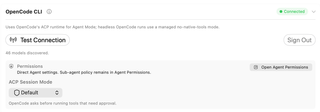
Authenticate the installed OpenCode CLI, then select Connect:
opencode auth login
- Test Connection rechecks the integration. A summary reports discovered models; discovery can refresh in the background.
- Sign Out clears the connection and cached model availability in RepoPrompt. Manage the standalone CLI’s credentials through OpenCode.
- ACP Session Mode → Default asks before running tools that need approval.
- ACP Session Mode → Full Access runs available tools without approval prompts.
Interactive Agent Mode uses OpenCode’s Agent Client Protocol (ACP) runtime. Headless OpenCode runs use a managed mode without native tools.
Cursor CLI
Provider reference: Cursor CLI.

Connect checks the installed Cursor runtime. Complete Cursor login when prompted, or provide the credentials supported by that runtime, such as CURSOR_API_KEY or CURSOR_AUTH_TOKEN.
- Test Connection rechecks access.
- Refresh Models requests an updated list from the runtime.
- Sign Out disconnects Cursor in RepoPrompt and clears its cached model availability.
- ACP Auto-Approve → Default asks before running tools requiring approval.
- ACP Auto-Approve → Full Access makes RepoPrompt automatically approve Cursor ACP tool-permission requests.
RepoPrompt supplies its MCP integration through the ACP session. The provider’s Auto model option lets Cursor choose the model.
Grok Build
Provider reference: Grok Build.

Connect checks the installed Grok runtime. Authenticate with grok login or configure a Grok API key in API Providers.
grok login
- Test Connection rechecks access and reports discovered models.
- Sign Out disconnects Grok Build in RepoPrompt and clears cached model availability.
- Always-Approve Launch → Default leaves Grok’s approval prompts enabled.
- Always-Approve Launch → Full Access launches Grok with
--always-approve, allowing its shell and editing tools to run without per-request confirmation.
The launch setting applies to newly started Grok processes.
Google Antigravity
Provider reference: Google Antigravity.

- Install Runtime installs RepoPrompt’s managed Antigravity ACP runtime.
- Update Runtime updates an installed runtime.
- Test Connection checks runtime support and refreshes model discovery. It is available after installation.
Google authentication is requested through ACP when needed. The card’s availability indicator reflects runtime installation; it does not by itself establish that Google login is complete or that selectable models were returned. This card does not include its own sign-out or inline permission picker.
Devin CLI
Provider reference: Devin CLI.

Install and authenticate Devin so the devin acp runtime is available. Devin manages its own authentication and internal tools. The card’s availability indicator reflects whether the runtime is installed.
Refresh Models requests the model list. Permission Mode controls newly started Devin processes:
- Provider Default passes no permission flag and uses Devin’s own configured default.
- Normal automatically approves read-only tools and asks before actions requiring approval (
auto). - Accept Edits also automatically accepts workspace edits (
accept-edits). - Smart additionally runs actions judged safe by a fast model (
smart). - Full Approval runs tools without approval prompts (
dangerous).
This integration does not offer Devin’s autonomous mode. Use Devin’s own authentication tools to manage its login.
Claude Code–Compatible Backends
These backends reuse the installed claude executable with their own endpoint and credentials. They do not require an Anthropic Claude account login. The prerequisite row explains whether the Claude executable is available and offers a connection or installation action when needed.
Test Backend sends a minimal message using the same backend environment overrides as Agent Mode. Enable and configure the backend, save a credential, and make sure the Claude executable is available before testing. The result appears in the card. Saving display, endpoint, authentication-mode, or model-mapping changes updates the backend configuration; credential fields use their separate Save or Change action.
CC Zai
Provider reference: CC Zai.
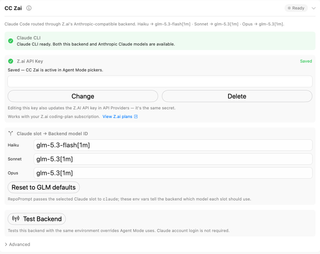
CC Zai routes Claude Code through Z.ai’s Anthropic-compatible endpoint.
- Z.ai API Key accepts the backend credential. Save or Change stores it; Delete removes it.
- Claude slot → Backend model ID maps the Haiku, Sonnet, and Opus slots to backend model identifiers. Fill all three slots. RepoPrompt passes the selected slot to Claude and supplies the mappings through environment variables.
- Reset to GLM defaults restores the backend preset, including its standard slot mappings.
- View Z.ai plans opens the provider’s coding-plan information.
This field uses the same saved secret as Z.AI in API Providers. Changing or deleting it here also changes that API-provider credential.
Advanced
Expand Advanced inside the CC Zai card to edit the preset’s connection settings:
- Display name changes the backend’s label in RepoPrompt, including its card title. A blank name falls back to CC Zai.
- Base URL sets the Anthropic-compatible endpoint. The preset is
https://api.z.ai/api/anthropic. The address must include anhttporhttpsscheme and a host to be valid. - Auth header chooses how the saved credential is supplied to Claude Code: ANTHROPIC_API_KEY or ANTHROPIC_AUTH_TOKEN. CC Zai defaults to ANTHROPIC_AUTH_TOKEN. Choose the option expected by the endpoint; this menu does not enter or replace the saved key.
- Reset to defaults restores the entire CC Zai preset, including its display name, endpoint, authentication choice, enabled state, and model-slot mappings. Inspect the restored fields for the exact model IDs supplied by your app version; see model-slot mappings for their meaning.
Name, URL, and authentication changes are saved as you edit them. They clear the previous backend test result; use Test Backend to check the new configuration. Resetting keeps the saved Z.ai credential. Use the credential’s Delete button to remove it.
CC Moonshot
Provider reference: CC Moonshot.
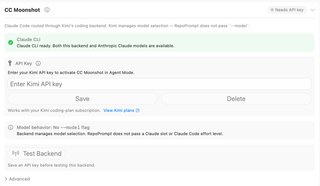
CC Moonshot routes Claude Code through Kimi’s coding backend.
- API Key accepts the Kimi credential. Save or Change stores it; Delete removes it. The key information button opens the Kimi Code console.
- View Kimi plans opens the provider’s coding-plan information.
- Test Backend checks the configured Kimi route.
Kimi manages model selection. RepoPrompt sends neither a --model flag nor a Claude Code effort level for this backend.
Advanced
Expand Advanced inside the CC Moonshot card to edit its connection settings:
- Display name changes the backend’s label in RepoPrompt, including its card title. A blank name falls back to CC Moonshot.
- Base URL sets the Kimi coding endpoint. The preset is
https://api.kimi.com/coding/. The address must include anhttporhttpsscheme and a host to be valid. - Auth header offers ANTHROPIC_API_KEY and ANTHROPIC_AUTH_TOKEN, selecting the environment variable through which Claude Code receives the saved credential. CC Moonshot defaults to ANTHROPIC_API_KEY. Changing this choice does not replace the saved key.
- Reset to defaults restores the entire CC Moonshot preset: its name, endpoint, authentication choice, enabled state, and backend-managed model selection with no
--modelflag.
Name, URL, and authentication changes are saved as you edit them and clear the previous backend test result. Run Test Backend again to check them. Resetting keeps the saved Kimi credential; use the credential’s Delete button to remove it.
CC Custom
Provider reference: CC Custom.
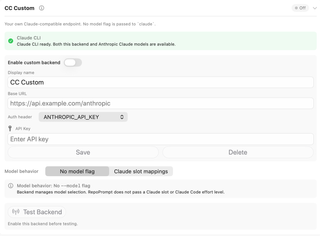
Use CC Custom for your own Claude-compatible endpoint:

- Enable custom backend controls whether the configured backend is active.
- Display name sets its label in the app.
- Base URL identifies the compatible endpoint.
- Request timeout (milliseconds) sets the timeout for new launches. The default is 600000 ms (10 minutes). Enter milliseconds, not seconds; leave it blank to use the default.
- Context window (tokens) sets the window for unrecognized model IDs on new launches. The default is 200000 tokens, shared by all three model slots. IDs with
[1m], bareclaude-names, and recognized Claude models follow Claude Code's own window rules. Leave it blank to use the default. - Auth header chooses ANTHROPIC_API_KEY or ANTHROPIC_AUTH_TOKEN, the environment variable through which the Claude process receives the credential.
- API Key or Auth Token accepts that credential. Save or Change stores it; Delete removes it.
- Model behavior → No model flag leaves model selection to the backend. RepoPrompt sends no Claude slot or Claude Code effort level.
- Model behavior → Claude slot mappings exposes Haiku, Sonnet, and Opus model-ID fields. All three must be filled before the backend can launch. Reset custom backend restores the custom backend preset.
- Test Backend checks the enabled, configured endpoint.
Full Access, Grok’s always-approve launch, and Devin’s Full Approval allow actions without individual confirmation. Codex Full Access also permits writes outside the workspace sandbox. Use these modes only where that access is intended. Sub-agent policy remains separately controlled in Agent Permissions.