Manage Presets
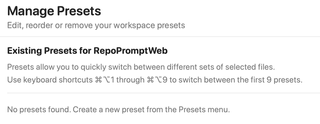
Manage saved workspace presets so you can restore reusable file selections and context configurations.
Open Settings → Workspaces → Manage Presets for the workspace you want to organize. These presets restore workspace file selections. They are separate from Oracle Model Presets and Workflow Presets.
Workspace scope

The heading identifies the workspace whose presets you are editing. The first nine presets can be selected with Option+Command+1–9, unless you remapped them in Keyboard Shortcuts.
Create the first preset

The screenshot shows an empty list. Create a preset from the workspace's Presets menu after preparing the selection you want to reuse. The new-preset shortcut is Option+Command+P by default.
Manage existing presets
Once presets exist, each row offers switching, renaming, reordering, and deletion. Moving a preset up or down changes its position and therefore its numbered shortcut. A rename must contain non-whitespace text.
Switching applies the preset and closes the management sheet. Deleting removes the saved preset from that workspace; it does not delete the selected project files.