Create and Use a Worktree
A worktree gives a coding task its own checkout. Before starting, open the intended Git repository and decide which committed starting point the task needs. A new worktree does not copy your main checkout's uncommitted tracked edits.
Start a task in a new worktree
- Open a new session and choose Work locally above the message editor.
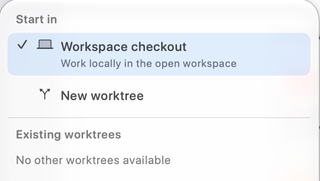
- Under Start in, select New worktree. This stages the choice; creation happens when you first send.
- Write a focused task with an observable result. For example: “Fix the empty-state layout and verify it at narrow widths. Work in the new worktree; leave the main checkout unchanged.”
- Send, then inspect the execution-location indicator. Check the path and branch or detached commit before assuming that work is isolated. If creation reports an error, resolve it before asking for edits.
For a particular base revision or branch configuration, use the supported creation options exposed by the manage_worktree tool, and inspect the returned descriptor. Do not infer the base from the task's name.
Continue in an existing worktree
Choose an entry under Existing worktrees. Rows identify the branch or detached commit, worktree name, and path. A prunable entry is unavailable. “No other worktrees available” means the picker has no alternative checkout to offer; it does not create one automatically.
Changing an established session's location restarts its provider context and can require stopping an active turn. Follow Execution Location before moving an ongoing task.
Prepare local setup
Committed files come from Git. Dependencies, local configuration, and development services may need separate preparation. To copy selected ignored setup files into app-managed worktrees, put narrow patterns in .worktreeinclude at the main repository root:
# Copy only these files if Git already ignores them.
.env.local
config/development.json
The include file does not make a file ignored. Add the appropriate ignore rules separately if needed. Automatic session creation uses the ignored-only default; see copying rules and exclusions for the MCP untracked-file opt-in and external-path limitations.
Finish and preserve the result
Run the project's relevant checks in the task's checkout and inspect the actual changes. Commit the intended source changes before requesting a RepoPrompt worktree merge. Stopping a coding agent, closing a conversation, or retiring an overseer lane does not merge its work.
Keep the checkout until its work is integrated or deliberately preserved elsewhere. Unbinding a session is a routing change, not worktree deletion. Continue with Review and Merge.